Emarsys integration
The Emarsys integration connects InstantFeedback with your Emarsys account so that feedback flows in both directions. Once it is set up, your team gets:
- Feedback requests that are triggered from Emarsys: Emarsys calls a campaign-specific webhook URL and InstantFeedback sends the SMS or email request.
- Grades, comments, and survey results that are sent back the moment a customer responds, ready to be used in Emarsys.
- A field mapping per campaign that tells InstantFeedback which Emarsys fields hold the contact details and custom field values.
The two directions work independently and are configured per campaign:
| Direction | How it works |
|---|---|
| Inbound (Emarsys → InstantFeedback) | Emarsys posts a contact to the campaign's Webhook URL. InstantFeedback creates a feedback request for that contact. |
| Outbound (InstantFeedback → Emarsys) | Every grade, comment, and survey event is posted to the campaign's Event trigger URL. This part of the integration is called Emvents, and it handles the synchronisation to Emarsys. |
Before you start
- You need the admin role on the InstantFeedback account to activate, deactivate, or reset the integration. Other members can view the Emarsys settings but cannot change them.
- You need edit rights on a campaign to change its Emarsys settings. Users without edit rights see a read-only summary on the campaign's Integrations page.
- To trigger feedback requests from Emarsys, you need an InstantFeedback API key. Create one under Settings → API keys and keep it ready; Emarsys authenticates with it when it calls the webhook URL.
- To send feedback back to Emarsys, you need the URL of your Emvents endpoint. Emvents is set up outside InstantFeedback; ask the person who manages your Emarsys account for the URL to use as the Event trigger URL.
- Emarsys, or the system that calls InstantFeedback on its behalf, must be able to send an
HTTPS
POSTrequest with a JSON body and HTTP Basic authentication.
Enable the integration
- Open Settings → Integrations. Each tile shows a coloured dot: green when the integration is active, red when it is not.
- On the Emarsys tile, click Settings. The first click creates the Emarsys configuration for your account and opens the Emarsys settings page.
- If the page title shows a red dot, click Activate in the top-right corner and confirm.
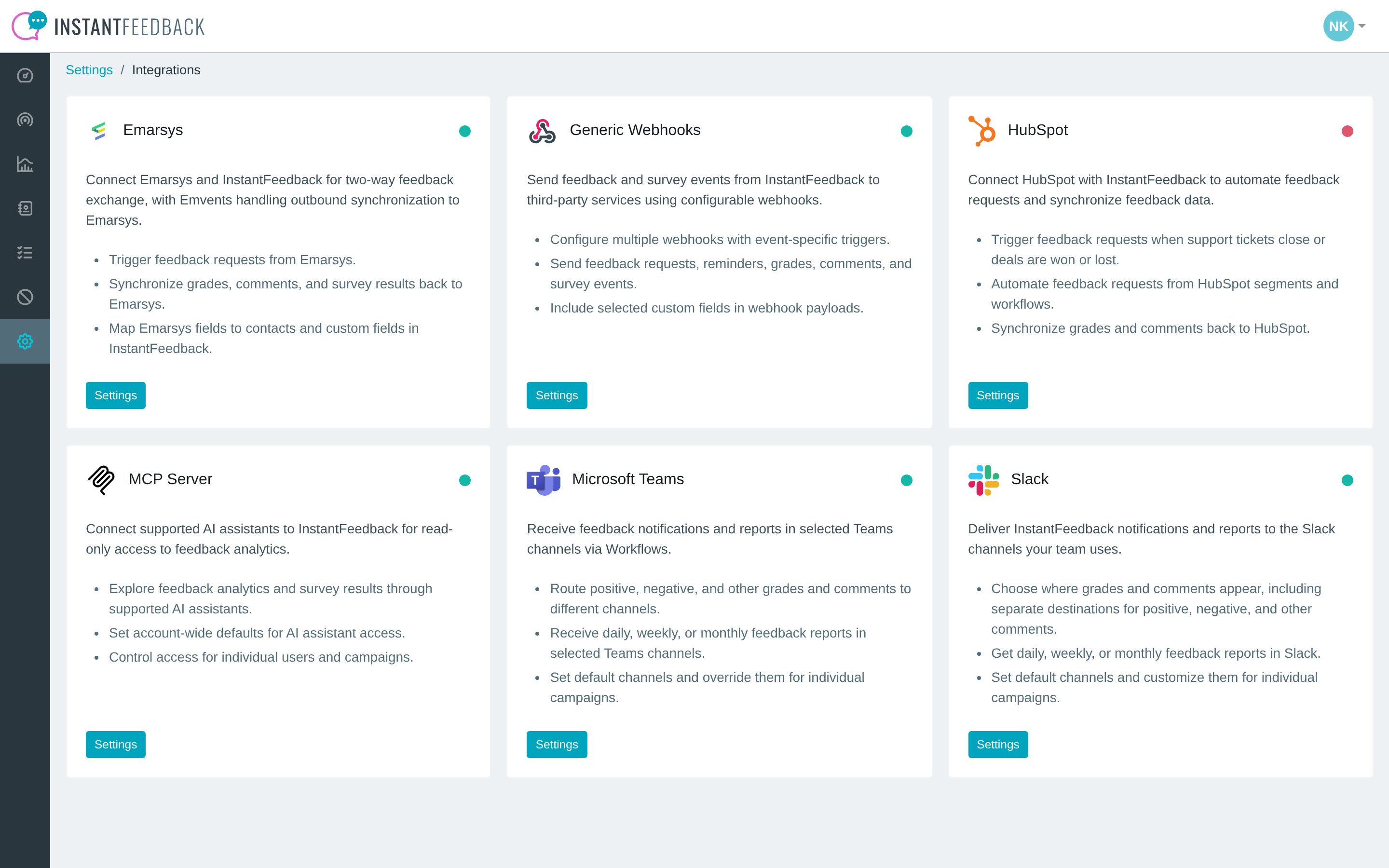
The Integrations page. The Emarsys tile is active (green dot).
The Emarsys settings page has no account-wide options: everything is configured per campaign. The page shows how many campaigns have Emarsys settings under Active configurations, and offers the account-wide actions described in Pause, reset, or remove.
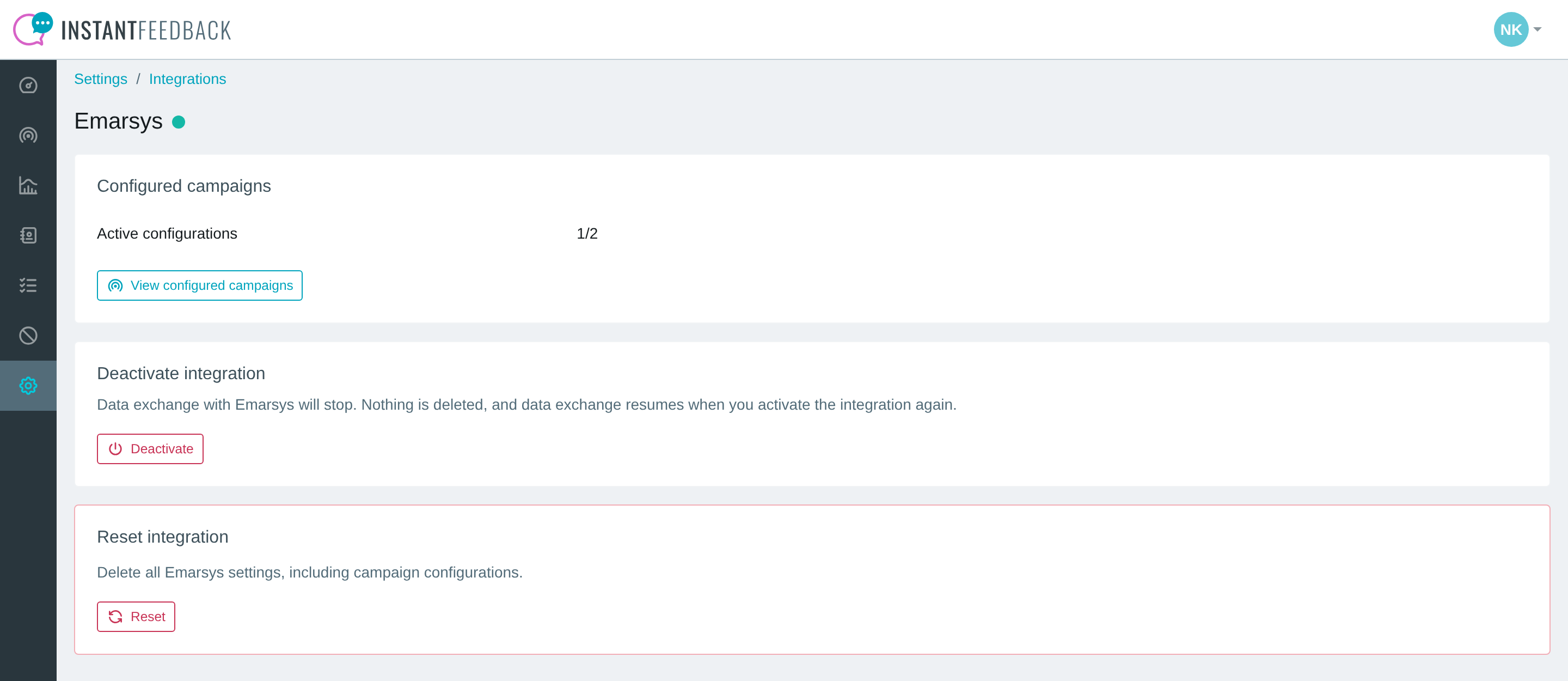
The Emarsys settings page with one active campaign configuration.
Set up a campaign
Open the campaign, go to Integrations, and select the Emarsys tab. The tab is divided into cards.
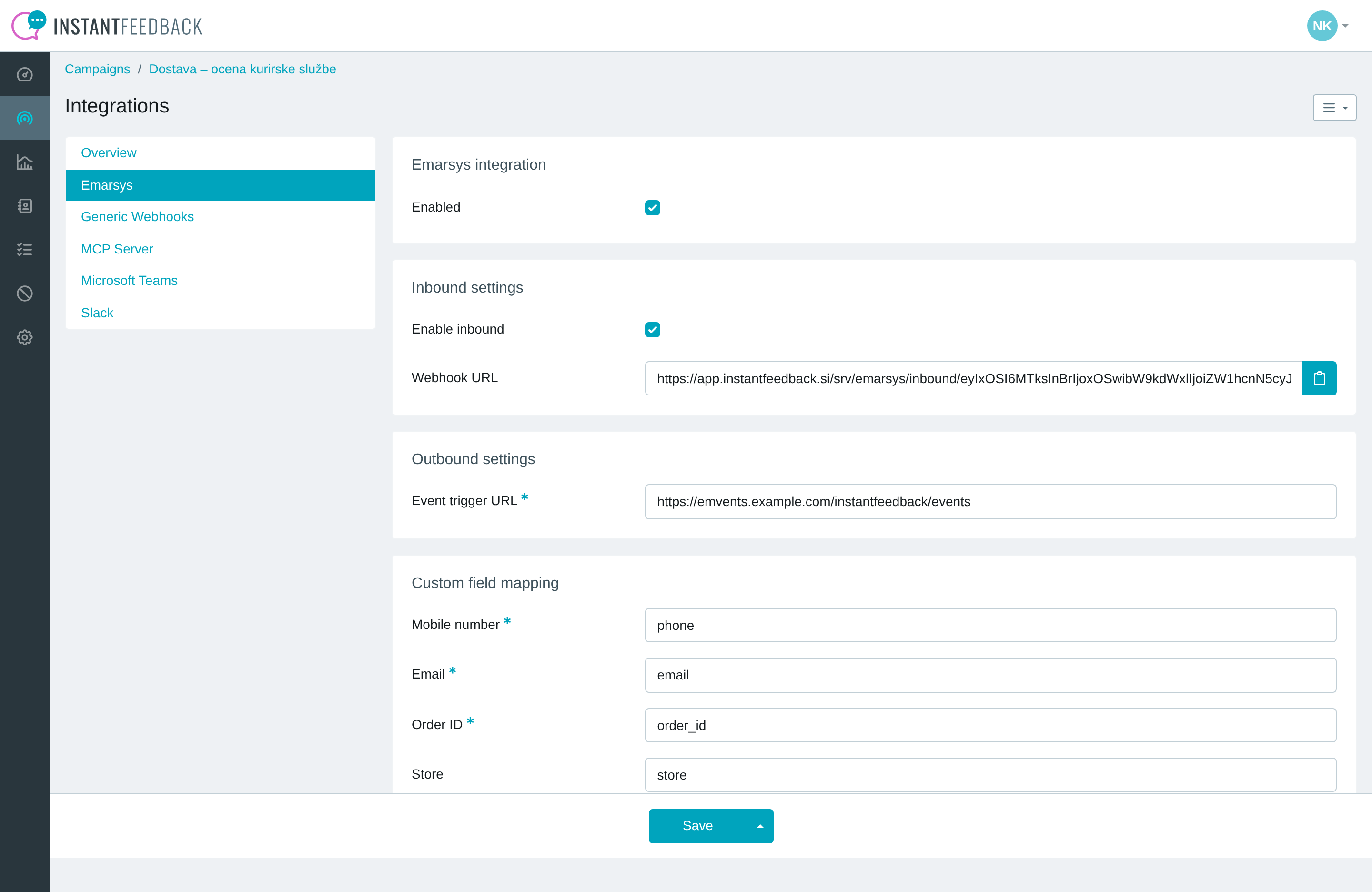
Per-campaign Emarsys settings for an SMS & Email campaign.
| Card | Setting | What it does |
|---|---|---|
| Emarsys integration | Enabled | Switches the integration on for this campaign. Without it, nothing is exchanged with Emarsys in either direction, even if the other settings are filled in. |
| Inbound settings | Enable inbound | Allows Emarsys to create feedback requests in this campaign through the Webhook URL. Shown for SMS, Email, and SMS & Email campaigns only. |
| Inbound settings | Webhook URL | The read-only, campaign-specific URL that Emarsys calls. Use the copy button next to it. The URL is unique to the campaign and does not change. |
| Outbound settings | Event trigger URL | The URL that receives grades, comments, and survey results (your Emvents endpoint). Required when Enabled is on. |
| Custom field mapping | one field per mapped value | The names of the Emarsys fields that correspond to the contact details and custom fields of this campaign. See Map Emarsys fields. |
Click Save to apply the changes. A confirmation reads Integration settings updated successfully.
Web and External campaigns
Campaigns using the Web or External channel have no Inbound settings card, because their feedback requests are not sent to a contact. They can still send grades, comments, and survey results to Emarsys.
Map Emarsys fields
The Custom field mapping card lists every value InstantFeedback can exchange with Emarsys. In each field, enter the name of the Emarsys field that holds that value. The same names are used in both directions: they are the keys InstantFeedback reads from the inbound request and the keys it writes into the outbound event.
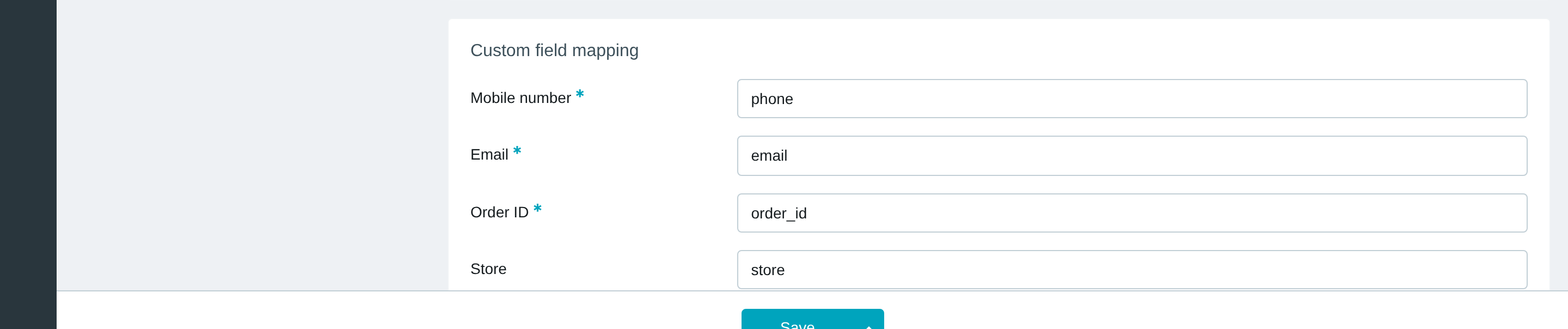
Each mapping field holds the name of the corresponding Emarsys field.
| Mapping field | Available for | Holds |
|---|---|---|
| Mobile number | SMS and SMS & Email campaigns | The Emarsys field with the recipient's mobile number. Required when Enabled is on. |
| Email and SMS & Email campaigns | The Emarsys field with the recipient's email address. Required when Enabled is on. | |
| Session ID | Web and External campaigns | The Emarsys field that should receive the request's identifier. Only used outbound. |
| Custom field name | All campaigns, one per custom field assigned to the campaign | The Emarsys field with the value for that custom field. A custom field marked as required on the campaign must be mapped when Enabled and Enable inbound are both on. |
Leave a mapping field empty to skip that value. Values that are not mapped are ignored on the way in and left out on the way out.
Tip
Use the exact field names from Emarsys, including their case. A request whose keys do not match the mapping is rejected because InstantFeedback cannot find the contact.
Trigger feedback requests from Emarsys
When Enable inbound is on, Emarsys creates a feedback request by sending one POST
request per contact to the campaign's Webhook URL.
- Copy the Webhook URL from the campaign's Emarsys tab.
-
In Emarsys, configure the step that should trigger the feedback request to call that URL with the details below. How this is done depends on your Emarsys and Emvents setup.
The Emarsys step that calls the InstantFeedback webhook URL.
-
Send a test contact and check that the request appears in the campaign's feedback list.
The request must look like this:
| Part | Value |
|---|---|
| Method and URL | POST to the Webhook URL of the campaign |
| Authentication | HTTP Basic. The username can be anything; the password is your InstantFeedback API key. |
Content-Type |
application/json |
| Body | A flat JSON object. Its keys are the Emarsys field names you entered in the mapping. |
Example
POST https://app.instantfeedback.si/srv/emarsys/inbound/…/create
Authorization: Basic …
Content-Type: application/json

{
    "phone": "+38640123456",
    "email": "[email protected]",
    "order_id": "A-10293"
}
With Mobile number mapped to phone, Email to email, and an Order ID custom
field to order_id, this creates an SMS feedback request for +386 40 123 456 with the order
ID stored on the request. Keys that are not in the mapping are ignored.
- For an SMS & Email campaign, the request is sent by SMS when the mobile number is present and by email when only the email address is present.
- The request is scheduled right away and follows the campaign's usual rules: sending hours, blacklist and graylist, the one-message-per-day rule, the grace period, and response caps. A request that breaks one of them is rejected, not queued.
- A successful call returns HTTP
201with the created request. A rejected call returns HTTP406and a JSONdetailwith the reason (see Troubleshooting). - InstantFeedback accepts up to four calls per second per API key. Faster callers receive
HTTP
429.
Treat the webhook URL and API key like passwords
Anyone with the URL and a valid API key can create feedback requests in the campaign, which sends real messages to real customers. Share them only with the people who manage the Emarsys side.
Sync grades, comments, and survey results to Emarsys
When Enabled is on and an Event trigger URL is set, InstantFeedback posts a JSON event to that URL every time one of the following happens on a feedback request in the campaign:
| Event | status in the payload |
Sent when |
|---|---|---|
| Grade | grade |
The customer submits a grade. |
| Comment | comment |
The customer adds a comment. |
| Survey started | survey_start |
The customer opens the survey that follows the grade. |
| Survey completed | survey_complete |
The customer finishes the survey. |
Sending and reminding are not reported. Each event contains the mapped fields with the
request's values, so Emarsys can find the contact, plus an appeal object with the
feedback data:
{
    "phone": "+38640123456",
    "order_id": "A-10293",
    "appeal": {
        "id": 123456,
        "type": "sms",
        "status": "comment",
        "campaign_id": 42,
        "campaign_name": "Store visit",
        "date_sent": "2026-09-21T08:15:00+00:00",
        "date_graded": "2026-09-21T08:21:34+00:00",
        "grade": 9,
        "date_commented": "2026-09-21T08:22:10+00:00",
        "comment": "Quick and friendly service."
    }
}
Field in appeal |
Present for | Meaning |
|---|---|---|
id, type, campaign_id, campaign_name, date_sent |
All events | The request ID, its channel (sms, email, widget, or external), the campaign, and when the request was sent. |
date_graded, grade |
All events | When the grade was given and its value. |
date_commented, comment |
comment |
When the comment was added and its text. |
date_survey_started, survey_id, survey_name |
survey_start, survey_complete |
When the survey was opened and which survey it is. |
date_survey_completed, survey_response |
survey_complete |
When the survey was finished and the answers, keyed by question ID. Each entry holds the question text and the answer; multiple-choice questions return a list, unanswered questions null. |
Dates are in ISO 8601 format. Only mapped fields with a value are included, so a request
without an email address has no email key even when Email is mapped.
The Emvents endpoint whose URL goes into Event trigger URL.
The grade and comment as they arrive on the contact in Emarsys.
Delivery and retries
The endpoint must answer with an HTTP 2xx status within 30 seconds. If it times out,
cannot be reached, or answers with 408, 429, or a 5xx status, InstantFeedback
retries up to five times over the next two hours, honouring a Retry-After header if
present. Any other response, including redirects, is treated as final and the event is
not sent again. Failed deliveries are not shown in the app.
Review configured campaigns
Back on the Emarsys settings page, Active configurations counts the campaigns with Emarsys settings that are switched on against all campaigns with saved settings. Click View configured campaigns to list them; the campaign name links to the campaign's Emarsys tab.
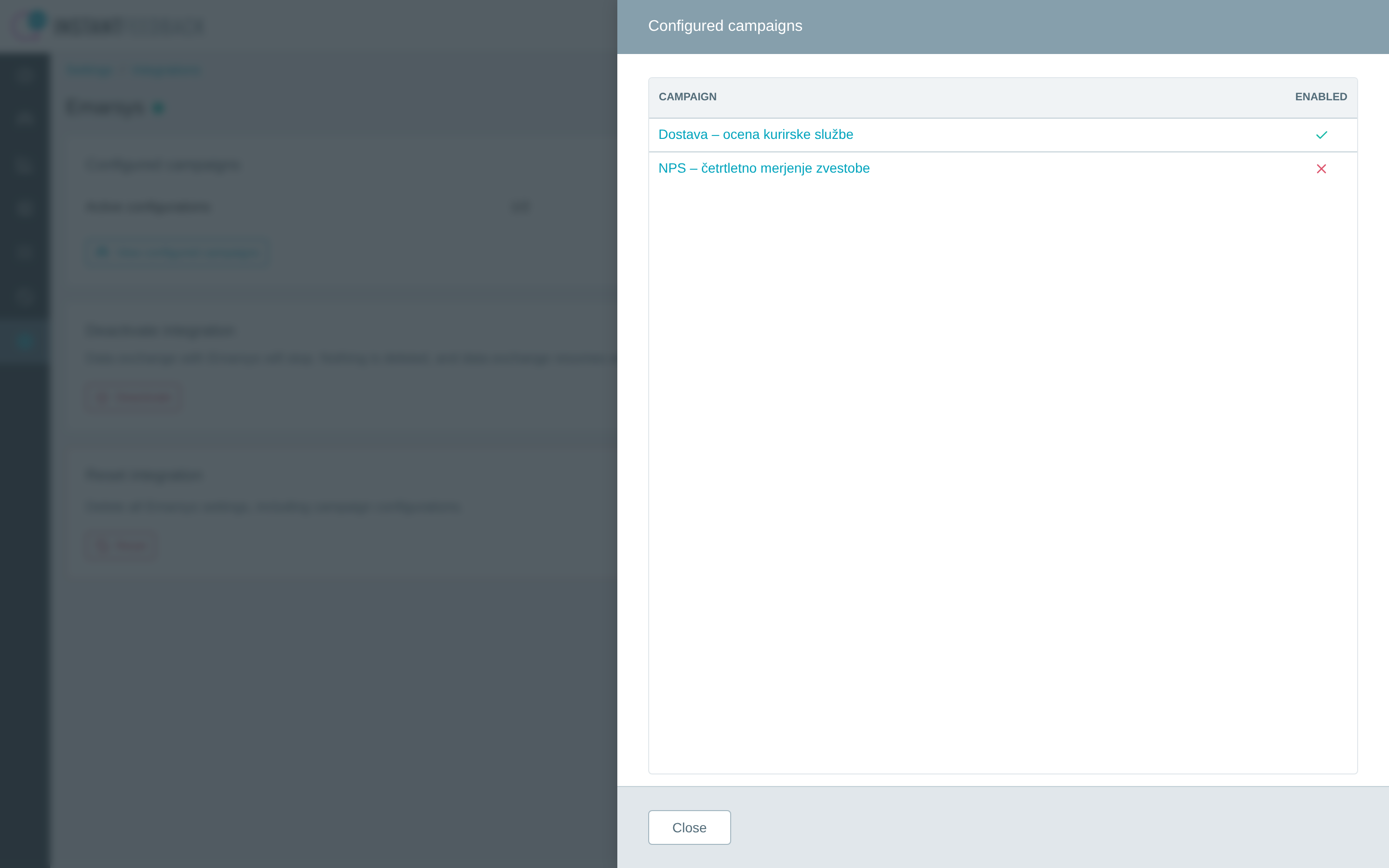
Every campaign with saved Emarsys settings and whether it is enabled.
Note
The dialog lists only the campaigns you have access to. If the integration is deactivated for the account, the campaigns keep their settings and their Emarsys tab shows This integration is disabled for this account. Campaign settings are preserved, but the integration won’t run until it is enabled again.
Pause, reset, or remove
The Emarsys settings page offers two account-wide actions.
- Deactivate stops data exchange in both directions for every campaign. Nothing is deleted, and data exchange resumes according to your campaign settings when you activate the integration again.
- Reset permanently deletes all Emarsys settings and campaign configurations and deactivates the integration. This cannot be undone. To confirm, type RESET into the dialog.
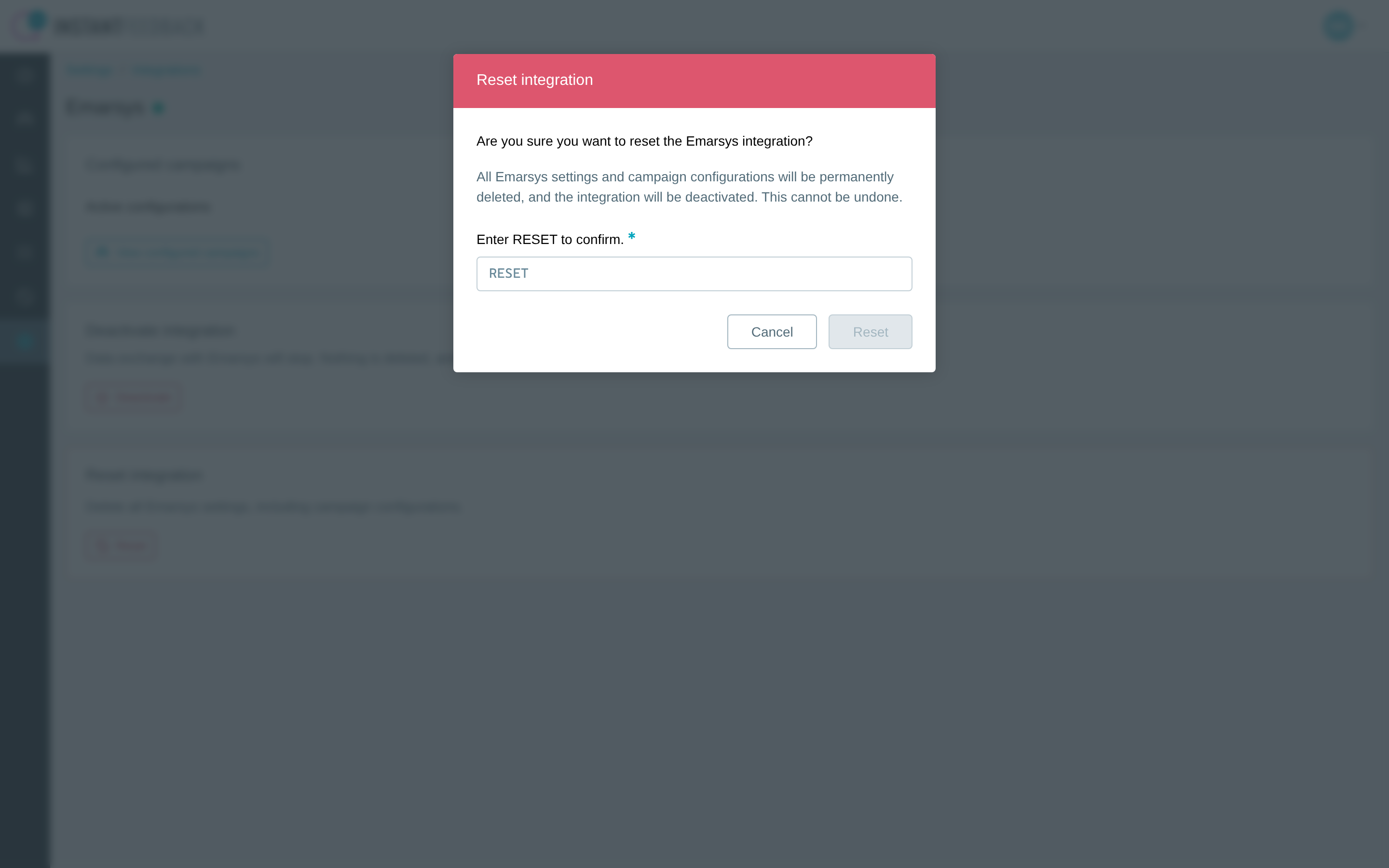
Resetting requires typing the confirmation phrase.
Webhook URLs stay valid
Deactivating or resetting does not change the campaign webhook URLs, and it does not revoke your API keys. After a reset, the URLs answer with Disabled until a campaign is configured again. To stop Emarsys from calling InstantFeedback altogether, remove the step in Emarsys or delete the API key under Settings → API keys.
Troubleshooting
| Message or symptom | What to do |
|---|---|
| This field is required. under Event trigger URL, Mobile number, or Email when saving the campaign | These fields become required once Enabled is switched on. Fill them in, or switch Enabled off to save the campaign without them. |
| Enter a valid URL. under Event trigger URL | The URL is incomplete. Copy the whole URL from your Emvents setup; it starts with https://. |
| This integration is disabled for this account. Campaign settings are preserved, but the integration won’t run until it is enabled again. | The integration is deactivated for the account. An admin activates it on the Emarsys settings page. |
Emarsys receives HTTP 401 with Invalid token., Inactive API key., or Expired API token. |
The Basic authentication password is not a valid API key. Check the key under Settings → API keys and make sure it is active and has not expired. |
Emarsys receives HTTP 403 with Disabled. |
Inbound is switched off. Check that the integration is active for the account, and that the campaign has both Enabled and Enable inbound switched on. |
Emarsys receives HTTP 404. |
The URL is wrong or incomplete, or the campaign was deleted. Copy the Webhook URL from the campaign's Emarsys tab again. |
Emarsys receives HTTP 406 with This field is required. for phone or email, or Either 'phone' or 'email' is required for SMS + Email campaigns. |
The request body has no key that matches the Mobile number or Email mapping. Compare the keys Emarsys sends with the names in Custom field mapping. |
Emarsys receives HTTP 406 with Field is required. under custom_fields. |
A required custom field of the campaign is missing from the request or is not mapped. Map it and make sure Emarsys sends a value. |
Emarsys receives HTTP 406 with Error parsing payload. |
The body is not a JSON object. Send a single flat object per request, not a list. |
Emarsys receives HTTP 406 with Invalid pk "…" - object does not exist. |
The campaign is not active. Activate the campaign in InstantFeedback. |
Emarsys receives HTTP 406 with Recipient is blacklisted., Recipient is graylisted., Scheduled time is outside the allowed interval (…), A message to … has already been sent or is pending for …, a grace period message, or a response cap message. |
The campaign's sending rules rejected the request, exactly as they would for a request created any other way. Adjust the rules on the campaign or the timing in Emarsys. |
Emarsys receives HTTP 429 with Request was throttled. |
More than four calls per second arrived for the same API key. Slow down the calls and retry the rejected ones. |
| Requests arrive but nothing reaches Emarsys. | Check that the integration is active, the campaign has Enabled on, and the Event trigger URL is correct. Failed deliveries are not shown in the app, so check the receiving end for the incoming events. |
| The campaign is missing from View configured campaigns. | The campaign has no saved Emarsys settings yet, or you do not have access to it. Open the campaign's Integrations → Emarsys tab and click Save. |