HubSpot integration
The HubSpot integration connects InstantFeedback with your HubSpot account so that feedback requests follow what happens in your CRM, and the feedback you collect flows back to the contacts, deals, and tickets it belongs to. Once it is set up, your team gets:
- Feedback requests sent automatically when a support ticket is closed or a deal is won or lost.
- Feedback requests sent to every contact in a HubSpot segment, or from your own HubSpot workflows using InstantFeedback workflow actions.
- Grades, comments, and survey answers recorded on the HubSpot contact, ticket, or deal as timeline events, together with Last rating, Average rating, and Last received comment properties you can use in lists, workflows, and reports.
- HubSpot contact details attached to feedback that arrives through the web widget.
Data flows both ways. InstantFeedback connects to HubSpot through OAuth: you sign in to HubSpot, choose the account, and grant the InstantFeedback app access. Several HubSpot accounts can be connected, and every campaign picks the one it works with.
Before you start
- You need the admin role on the InstantFeedback account. Other members can view the HubSpot settings but cannot change them.
- You need a HubSpot user who is allowed to install apps in the HubSpot account you want to connect. During the connection HubSpot asks you to grant read and write access to contacts, deals, tickets, lists, property definitions, and timeline events, and read access to owners.
- The integration works with SMS, Email, SMS & Email, and Web campaigns. It is not available for External campaigns.
- Which triggers you can use, and how many segment imports you can run per year, depend on your plan.
Enable the integration
- Open Settings → Integrations. Each tile shows a coloured dot: green when the integration is active, red when it is not.
- On the HubSpot tile, click Settings. The first click creates the HubSpot configuration for your account and opens the HubSpot settings page.
- If the page title shows a red dot, click Activate in the top-right corner and confirm.
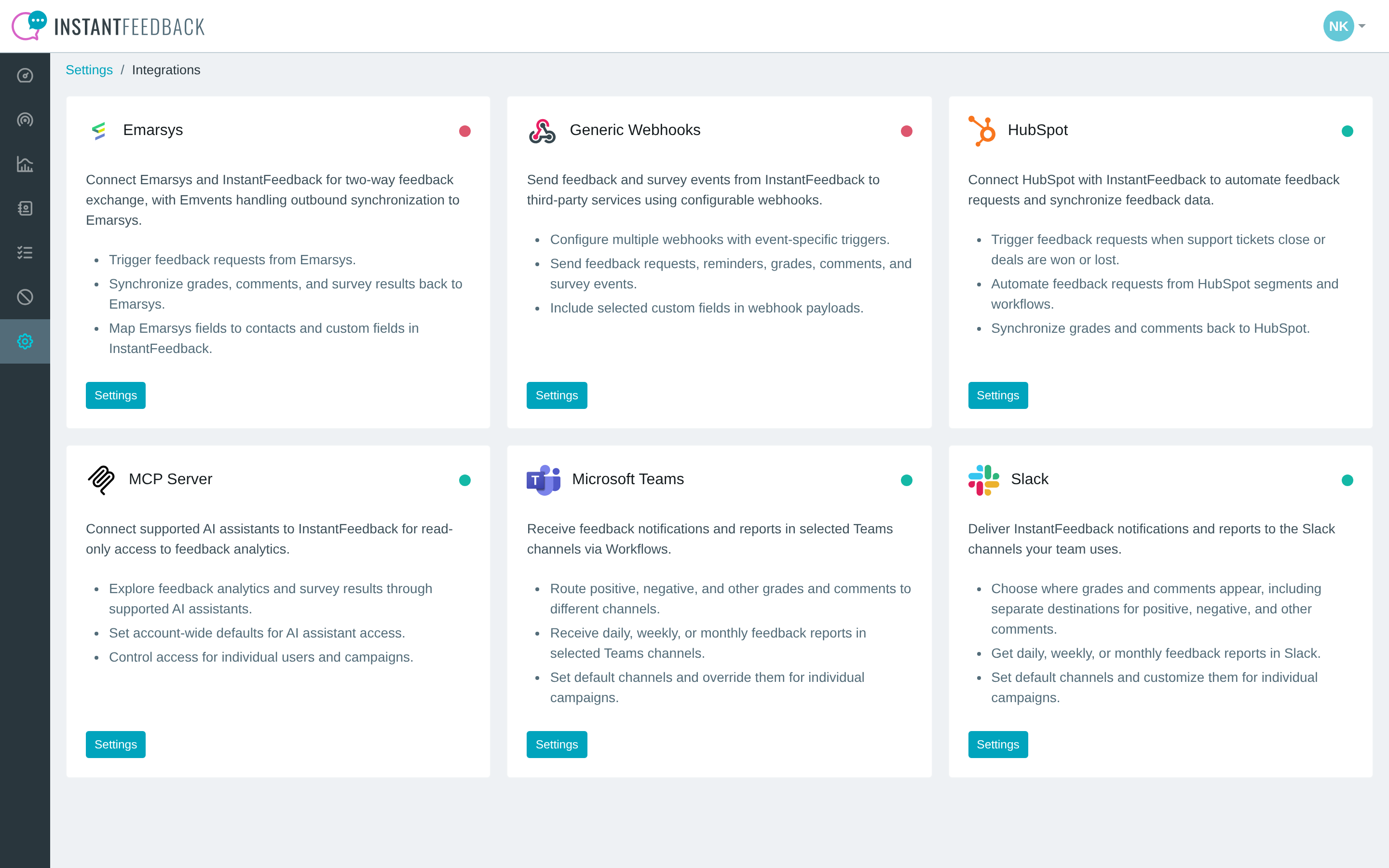
The Integrations page. The HubSpot tile is active (green dot).
Connect a HubSpot account
- On the HubSpot accounts tab, click Connect account.
- Your browser is sent to HubSpot. Sign in if needed and, if you belong to several HubSpot accounts, choose the one you want to connect.
-
Review the permissions InstantFeedback asks for and confirm the connection.
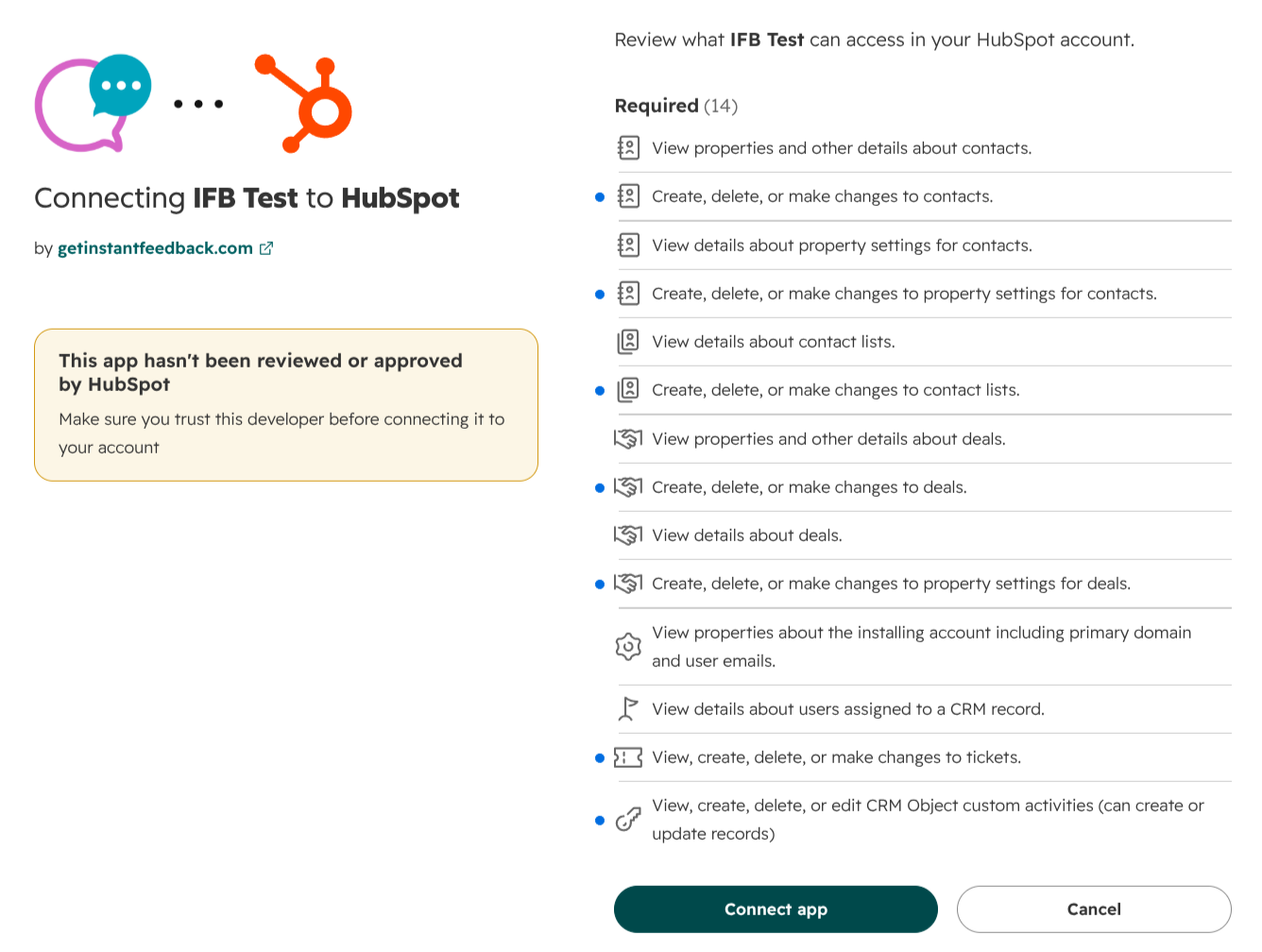
Grant the InstantFeedback app access to the account.
-
HubSpot returns you to InstantFeedback, which shows the Finalizing HubSpot integration page. Keep it open until every step is ticked, then click Continue.
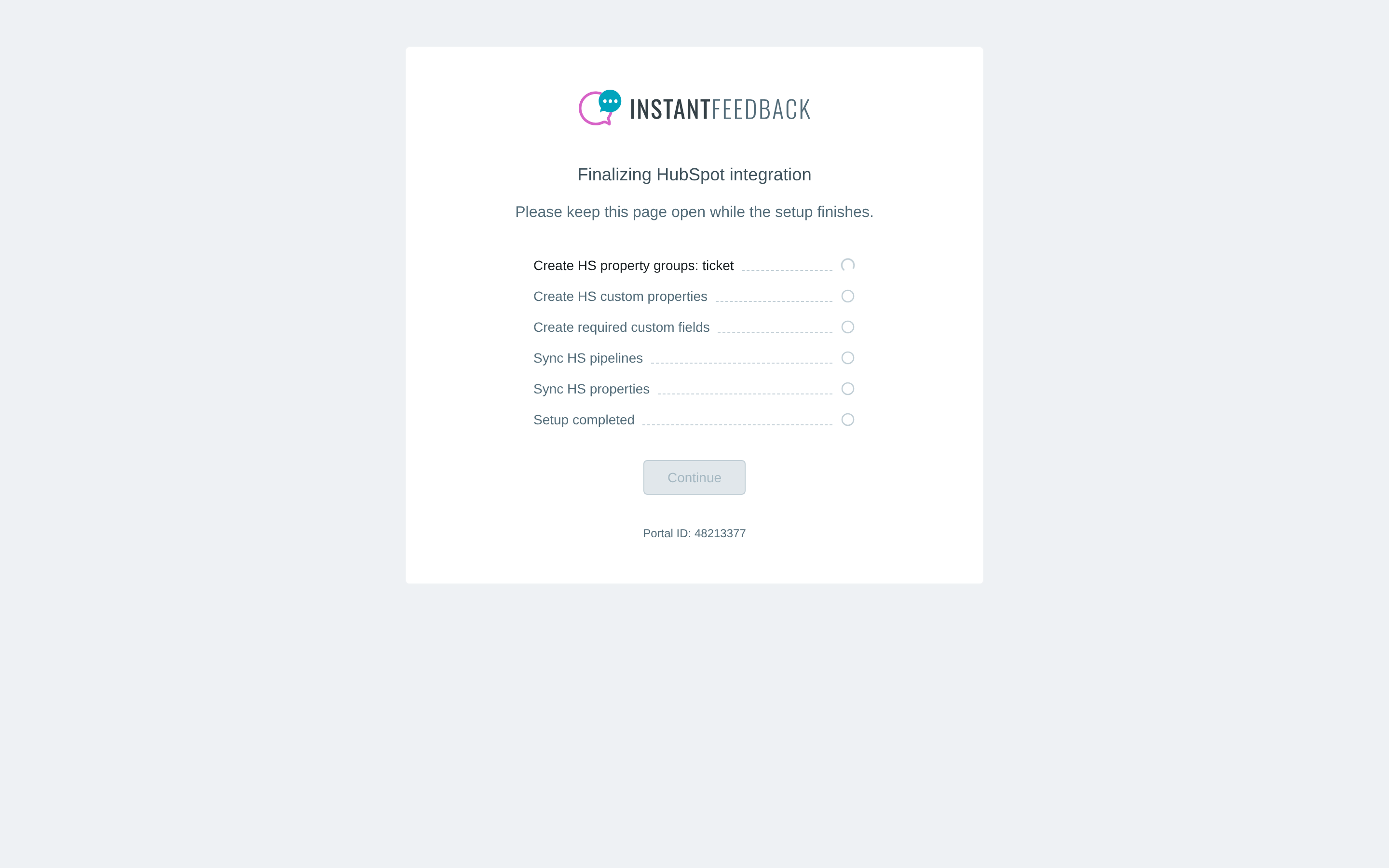
Setup runs in the background and reports each step as it completes.
During setup InstantFeedback prepares both sides of the connection:
| Step | What it does |
|---|---|
| Create HS property groups | Adds a property group named InstantFeedback to tickets, deals, and contacts in HubSpot. |
| Create HS custom properties | Creates the Last rating, Average rating, and Last received comment properties in that group (see What is synced back to HubSpot). |
| Create required custom fields | Creates the HubSpot custom fields in InstantFeedback (see Custom fields created by the integration). |
| Check campaign configurations | Makes sure every campaign that already uses this account has the required custom fields assigned. |
| Sync HS pipelines / Sync HS properties | Copies the ticket and deal pipelines and the ticket, deal, and contact properties from HubSpot, so you can pick them in campaign settings. |
The new account appears in the table as Account followed by its portal ID.
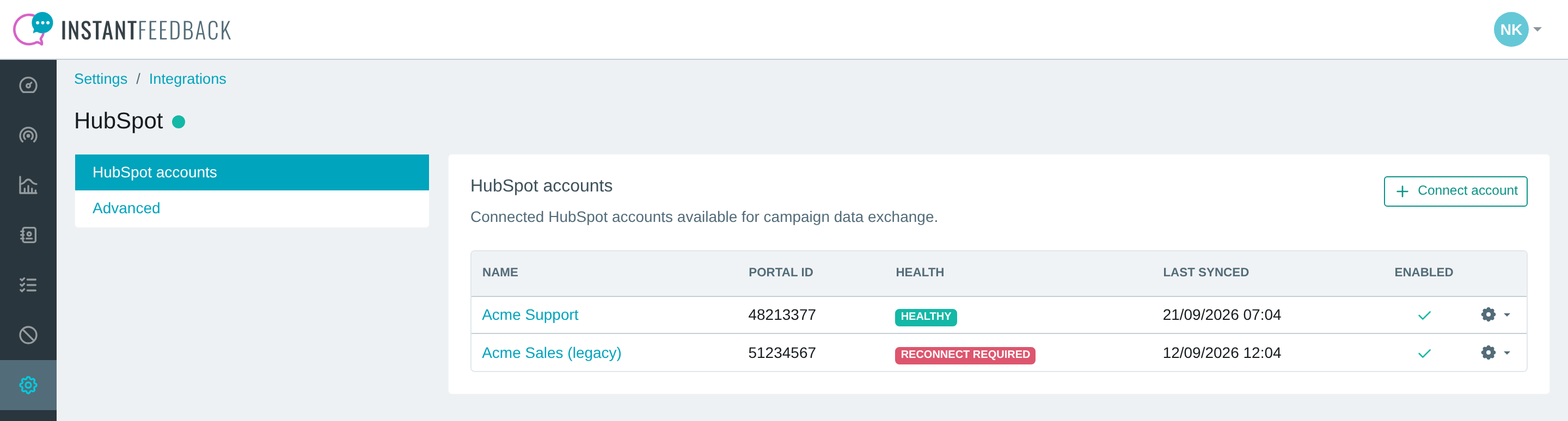
The HubSpot accounts tab lists every connected account with its portal ID, health, last sync, and enabled state.
Give the account a recognisable name
Click the account name to open Edit HubSpot account and change Name. The name is only used inside InstantFeedback, for example when you pick the account in campaign settings.
Repeat the steps to connect further HubSpot accounts. Connecting an account that is already connected updates the existing entry instead of creating a duplicate.
Account health
The Health column tells you whether InstantFeedback can currently work with the account. Hover over the badge to see when it was last checked.
| Health | Meaning |
|---|---|
| Healthy | The connection works and everything InstantFeedback needs exists in HubSpot. |
| Repair required | Something is missing, for example a property was deleted in HubSpot or a custom field is not assigned to a campaign. InstantFeedback tries to repair it automatically; you can also run Repair yourself. |
| Reconnect required | InstantFeedback can no longer access HubSpot, usually because the authorisation was revoked or has expired. Data exchange stops until you Reconnect. |
| Unknown | The account has not been checked yet, for example right after connecting. |
InstantFeedback checks every enabled account twice a day, repairs what it can, and refreshes the cached pipelines and properties. When an account needs to be reconnected, every admin of the InstantFeedback account receives an email with the subject URGENT | Reconnect your HubSpot account, at most once a day.
Manage an account
Click the gear icon at the end of a row to open the account menu. The options depend on the account's health.
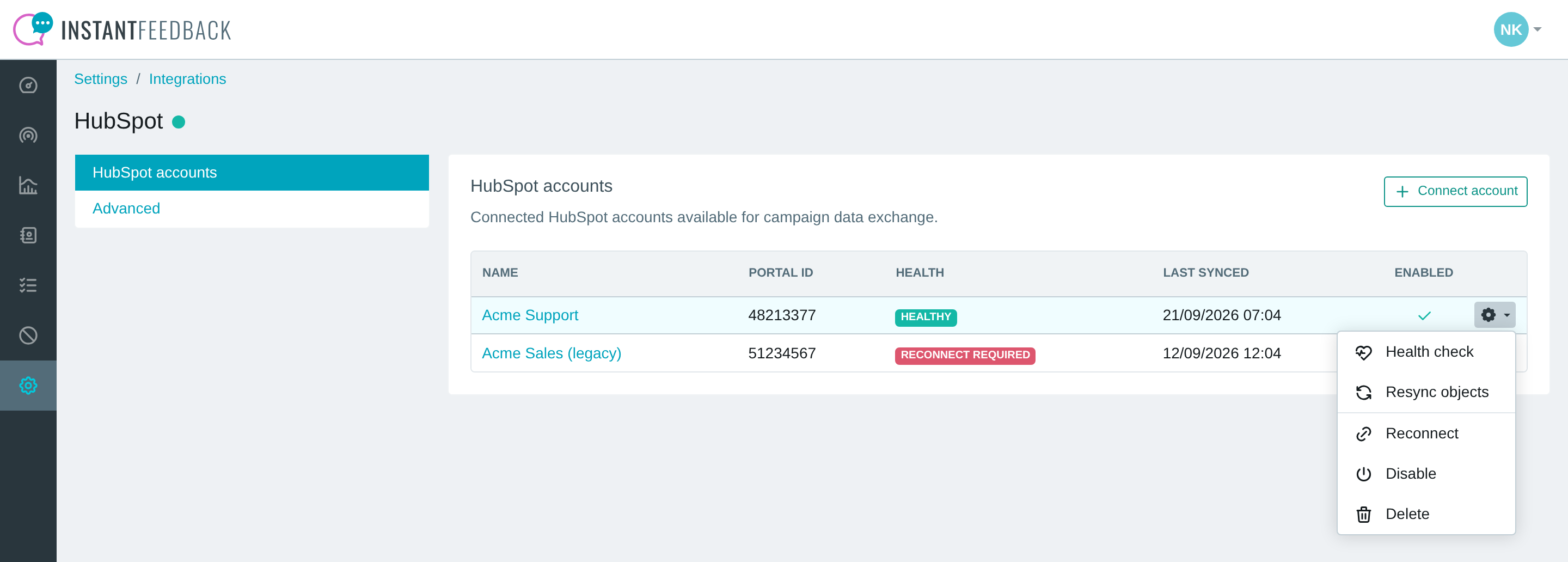
The account menu for a healthy account.
| Action | What it does |
|---|---|
| Health check | Verifies the connection, the required permissions, the HubSpot property groups and properties, the InstantFeedback custom fields, and every campaign that uses the account. Shown for every account. |
| Resync objects | Refreshes the cached ticket and deal pipelines and the ticket, deal, and contact properties from HubSpot. Run it after you add pipelines or properties in HubSpot. Shown when the account is Healthy. |
| Repair | Recreates anything the health check found missing and refreshes the cache. Shown when the account is Repair required. |
| Reconnect | Sends you to HubSpot to authorise the same account again. Use it when the account is Reconnect required. |
| Disable / Enable | Pauses or resumes data exchange with this account. Campaign settings that use the account are kept and show (Disabled) while it is off. |
| Delete | Removes the account and its cached pipelines and properties from InstantFeedback. An account that is still selected in a campaign cannot be deleted; unassign it first. |
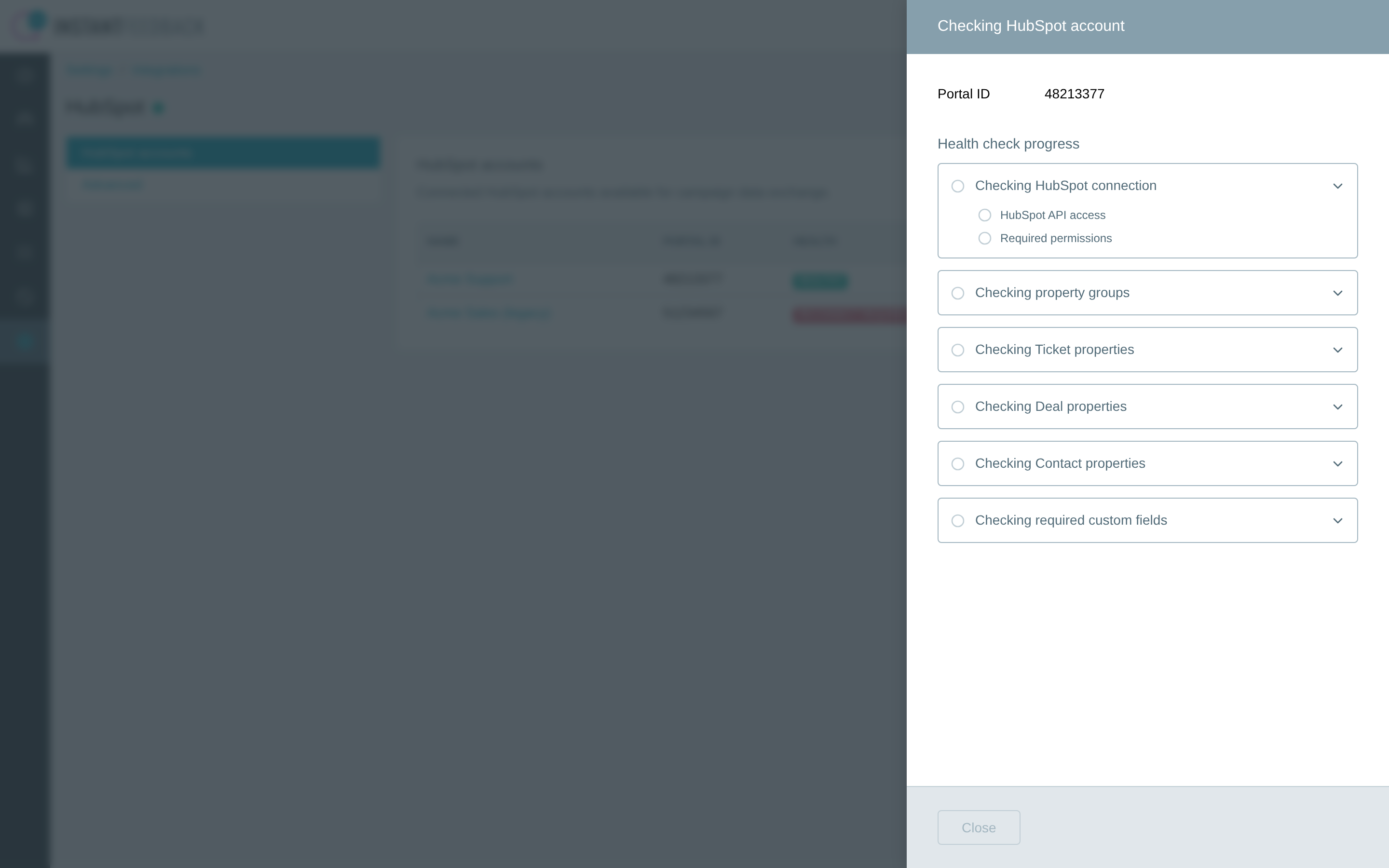
The health check reports every item it verifies. Expand a group to see the individual checks.
When the health check finds problems, it ends with HubSpot check completed with issues. and offers Repair now. When the connection itself is broken, it ends with InstantFeedback can no longer access this HubSpot account. Reconnect the account to restore the integration. and offers Reconnect now.
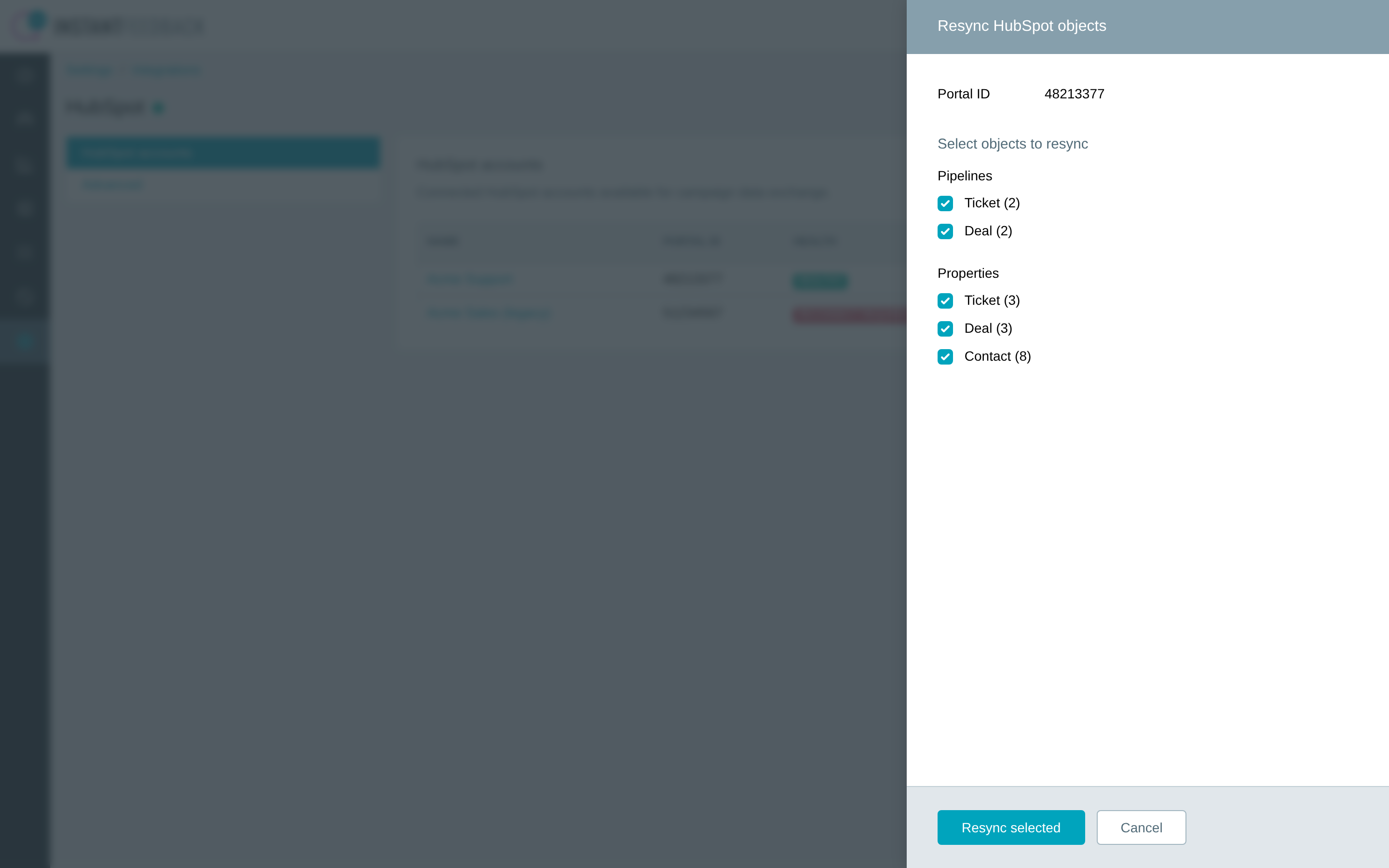
Choose which pipelines and properties to refresh, then click Resync selected.
Reconnecting keeps your settings
Reconnect only renews the authorisation. Campaign settings, field mappings, and the HubSpot properties stay as they are. HubSpot has to return the same account: if you pick a different one, InstantFeedback shows The authorized HubSpot account does not match the account being reconnected. and nothing is changed.
Custom fields created by the integration
Setup adds six custom fields to your InstantFeedback account. They store the link between a feedback request and the HubSpot record it came from, and are filled automatically.
| Custom field | Content |
|---|---|
| HubSpot object ID | The ID of the ticket, deal, contact, or segment that caused the request. |
| HubSpot object type | ticket, deal, contact, or list. |
| HubSpot object | The ticket subject, deal name, or segment name. |
| HubSpot contact ID | The ID of the HubSpot contact who received the request. |
| HubSpot owner ID | The owner of the ticket or deal. |
| HubSpot user token | The HubSpot tracking token of a visitor who left feedback through the web widget. |
The fields appear under Settings → Custom fields with the notice This custom field was created by the HubSpot integration. They are protected, so they cannot be renamed or deactivated. When you save a campaign's HubSpot settings with Enabled switched on, the fields the campaign needs are assigned to it automatically; the health check reports a campaign where they are missing.
You can use these fields like any other custom field, for example to filter feedback by HubSpot owner or to show the ticket subject in reports and notifications.
Per-campaign settings
Open the campaign, go to Integrations, and select the HubSpot tab. The form changes as you make choices: pick the account first, then the trigger, and the matching options appear below.
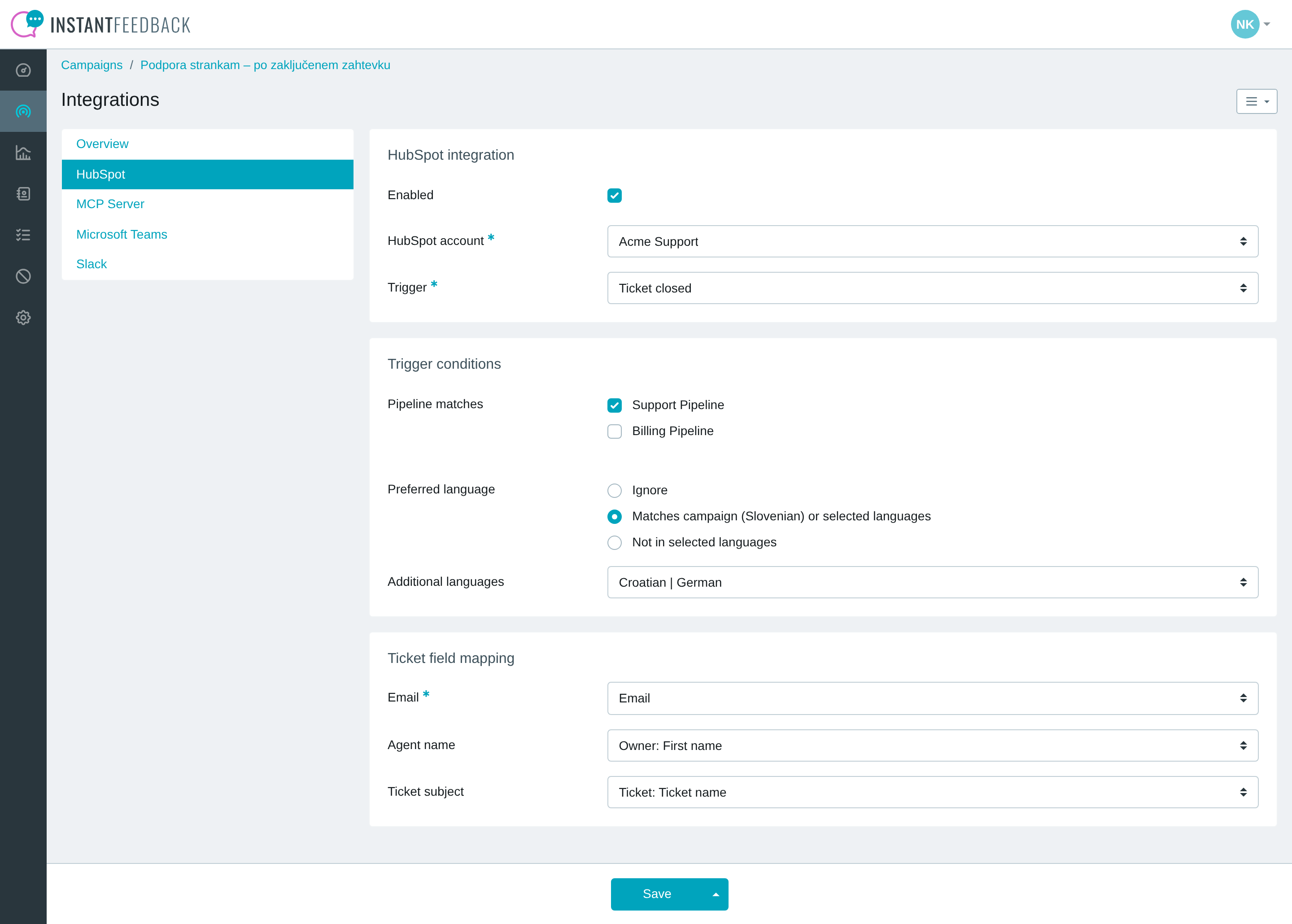
Per-campaign HubSpot settings for an Email campaign with the Ticket closed trigger.
| Setting | What it does |
|---|---|
| Enabled | Switches HubSpot on for this campaign. Without it, nothing is exchanged with HubSpot for the campaign even if the account integration is active. |
| HubSpot account | The connected account this campaign works with. Required when the campaign is enabled. |
| Trigger | What causes a feedback request. Shown for SMS, Email, and SMS & Email campaigns; see the table below. |
| Trigger | When a feedback request is sent |
|---|---|
| Ticket closed | When a ticket in one of the selected pipelines is closed in HubSpot. Requests go to the contacts associated with the ticket. |
| Deal won | When a deal in one of the selected pipelines is closed as won. Requests go to the contacts associated with the deal. |
| Deal lost | When a deal in one of the selected pipelines is closed as lost. Requests go to the contacts associated with the deal. |
| Manual from segment | When you import a HubSpot segment from the campaign's Send button (see Send to a HubSpot segment). |
| Workflow | When a HubSpot workflow runs an InstantFeedback workflow action (see Send from HubSpot workflows). |
Click Save to apply the changes. The confirmation reads Integration settings updated successfully.
Note
A campaign has exactly one trigger. To combine, for example, ticket-based requests with a manual segment import, create a second campaign.
Trigger conditions
The Trigger conditions card appears for the Ticket closed, Deal won, Deal lost, and Workflow triggers.
| Setting | What it does |
|---|---|
| Pipeline matches | Tick the ticket or deal pipelines that should trigger requests. Tickets and deals in pipelines you do not tick are ignored, so tick at least one. The list comes from the cached pipelines; run Resync objects if a new pipeline is missing. |
| Preferred language | Filters contacts by their HubSpot Preferred language. Ignore sends to everyone. Matches campaign (…) or selected languages sends only to contacts whose language matches the campaign language or one of the Additional languages; contacts without a language are skipped. Not in selected languages skips contacts whose language is one of the Excluded languages. |
| Workflow type | For the Workflow trigger only: Contact based, Deal based, or Ticket based. It must match the kind of workflow in HubSpot that will call the campaign. |
Requests honour the campaign's Send delay setting. When a ticket is reopened, or a deal is moved back to an open stage or closed the other way, feedback requests for it that have not been sent yet are cancelled.
Field mapping
The mapping card is named after the object the trigger works with: Ticket field mapping, Deal field mapping, or Contact field mapping. It tells InstantFeedback where to find the recipient's contact details and how to fill the campaign's custom fields.
- Mobile number (SMS campaigns) and Email (Email campaigns) pick the HubSpot contact property that holds the phone number or email address. They are required, except for the Workflow trigger, where the workflow action supplies the source instead.
- Every other custom field of the campaign gets a drop-down with the cached properties, grouped into Ticket or Deal, Contact, and Owner (First name, Last name, Email, User ID). Leave a field empty to skip it.
The six HubSpot custom fields are filled automatically and do not appear in the mapping.
Tip
Map the ticket subject or deal name to a custom field of your own if you want to show it in the feedback request text, and map the owner's name to greet the customer with the name of the agent who handled the case.
Send to a HubSpot segment
With the Manual from segment trigger, the campaign's Send button opens the page Send to contacts in a HubSpot segment instead of the usual send form.
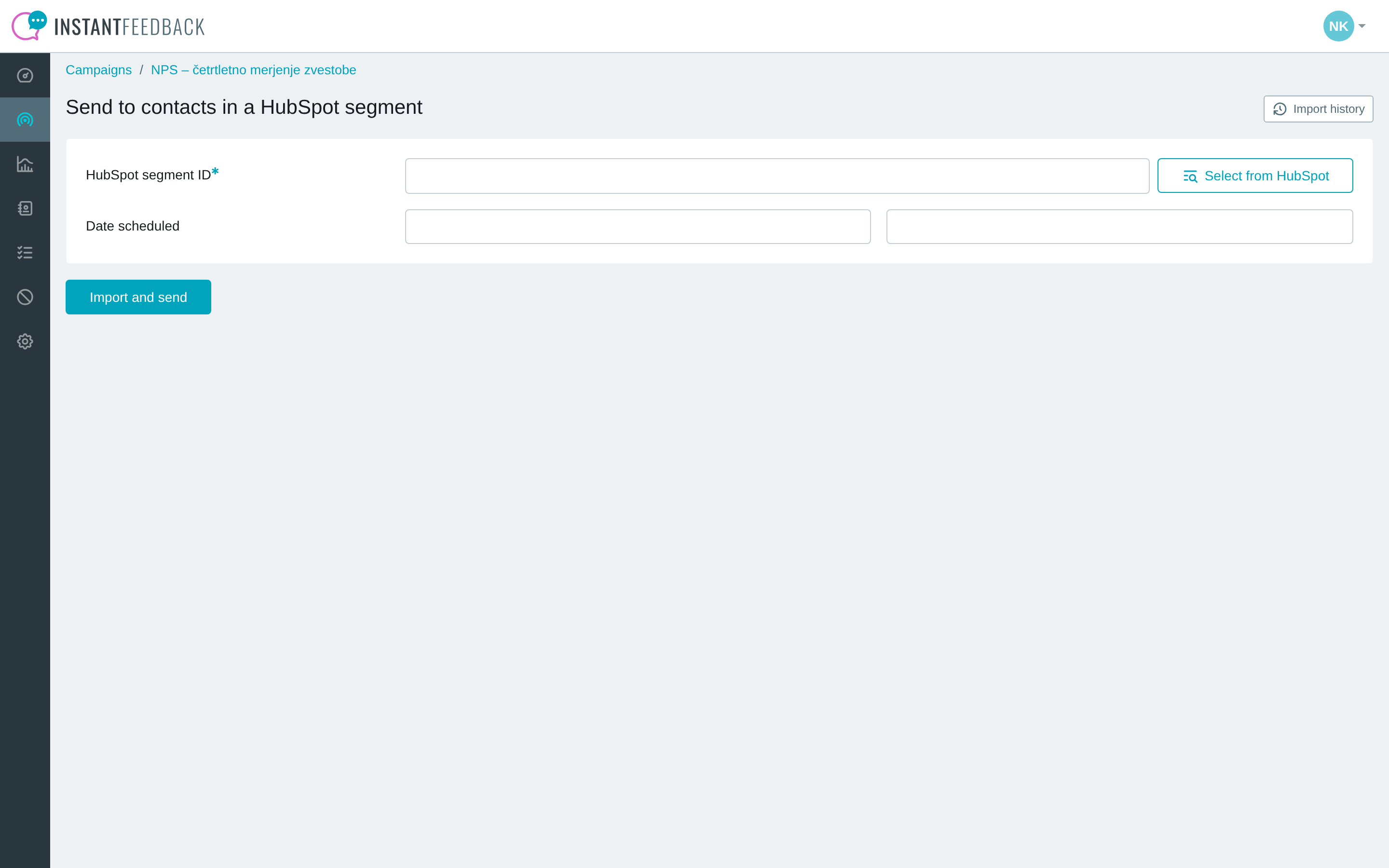
Enter a segment ID or pick a segment from HubSpot, optionally schedule the send, and click Import and send.
- Type the HubSpot segment ID, or click Select from HubSpot to choose from the contact segments in your account and click Use selected.
- Optionally set Date scheduled. Leave it empty to send right away, subject to the campaign's send delay.
- Click Import and send. The confirmation reads Import from HubSpot segment has been scheduled.
InstantFeedback reads the segment's members in the background and schedules one feedback request per contact, using the Contact field mapping of the campaign. Contacts without a usable phone number or email address are skipped and listed in the import log.
Click Import history to follow the imports of the campaign. Each entry shows when the import started and finished, the segment, how many contacts the segment had, how many requests were created, and the status: Pending, Running, Completed, or Error.
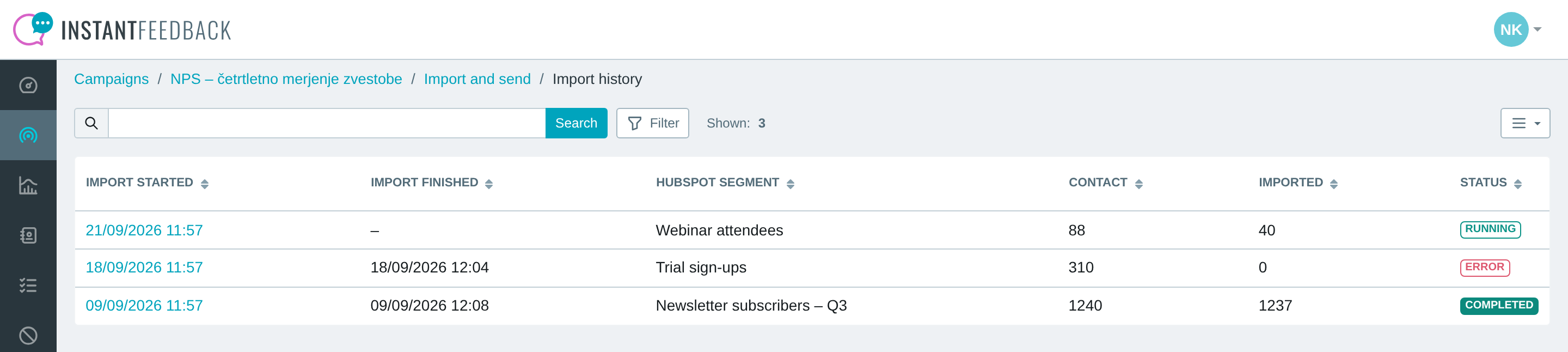
The import history of a campaign.
Click the start date of an import to see its details, including Date scheduled, Requested by, and a link to the Import errors with one line per skipped contact.
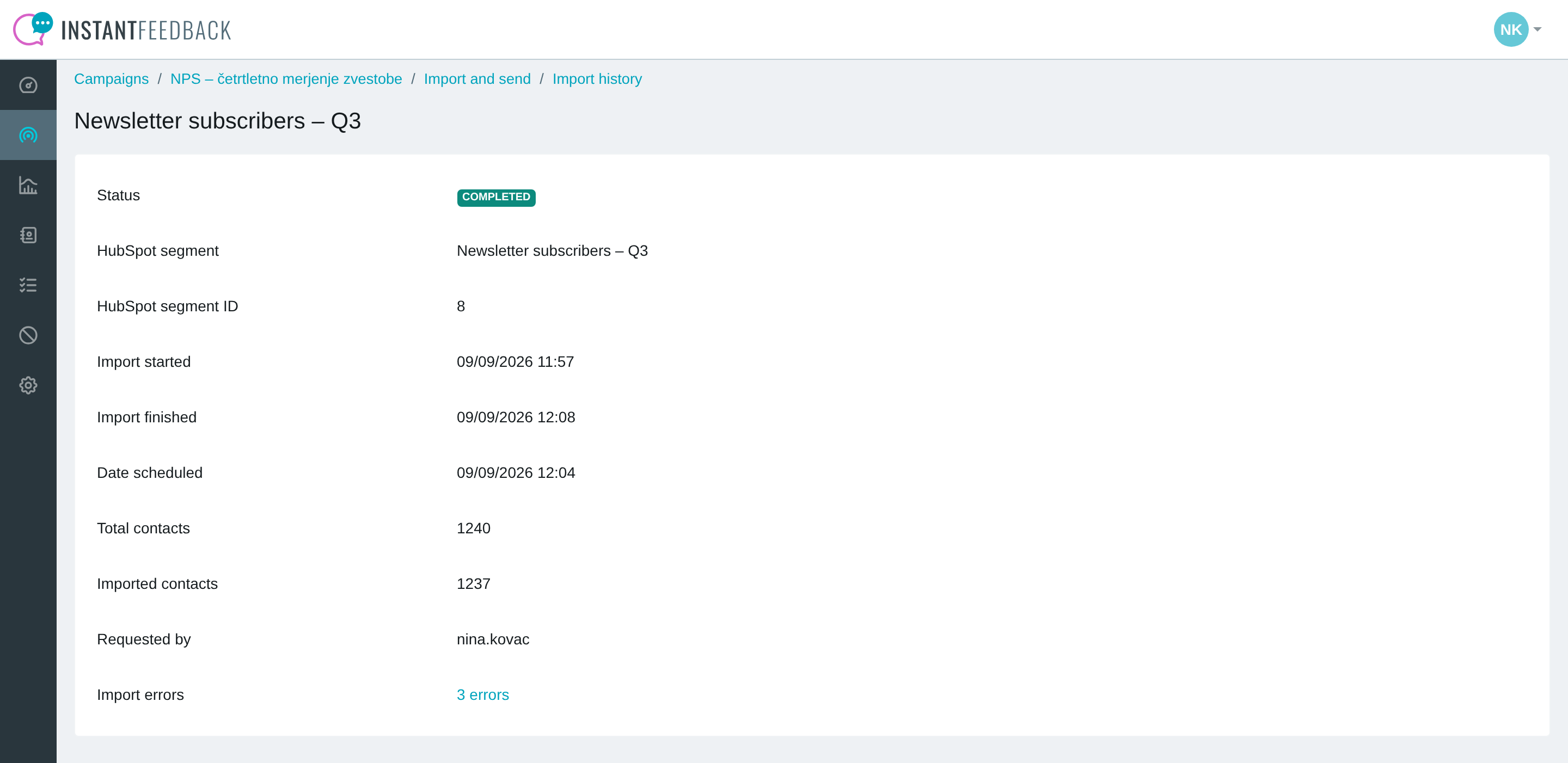
Import details. Click the errors link to open the full log.
Yearly limit
Your plan may limit the number of segment imports per campaign and calendar year. The page shows how many imports you have left, for example You have 8 / 10 segment imports remaining for this calendar year.
Send from HubSpot workflows
With the Workflow trigger, HubSpot workflows can send feedback requests through custom actions that the InstantFeedback app adds to the workflow editor. Set Workflow type to match the object your workflow is based on, save the campaign, then build the workflow in HubSpot.
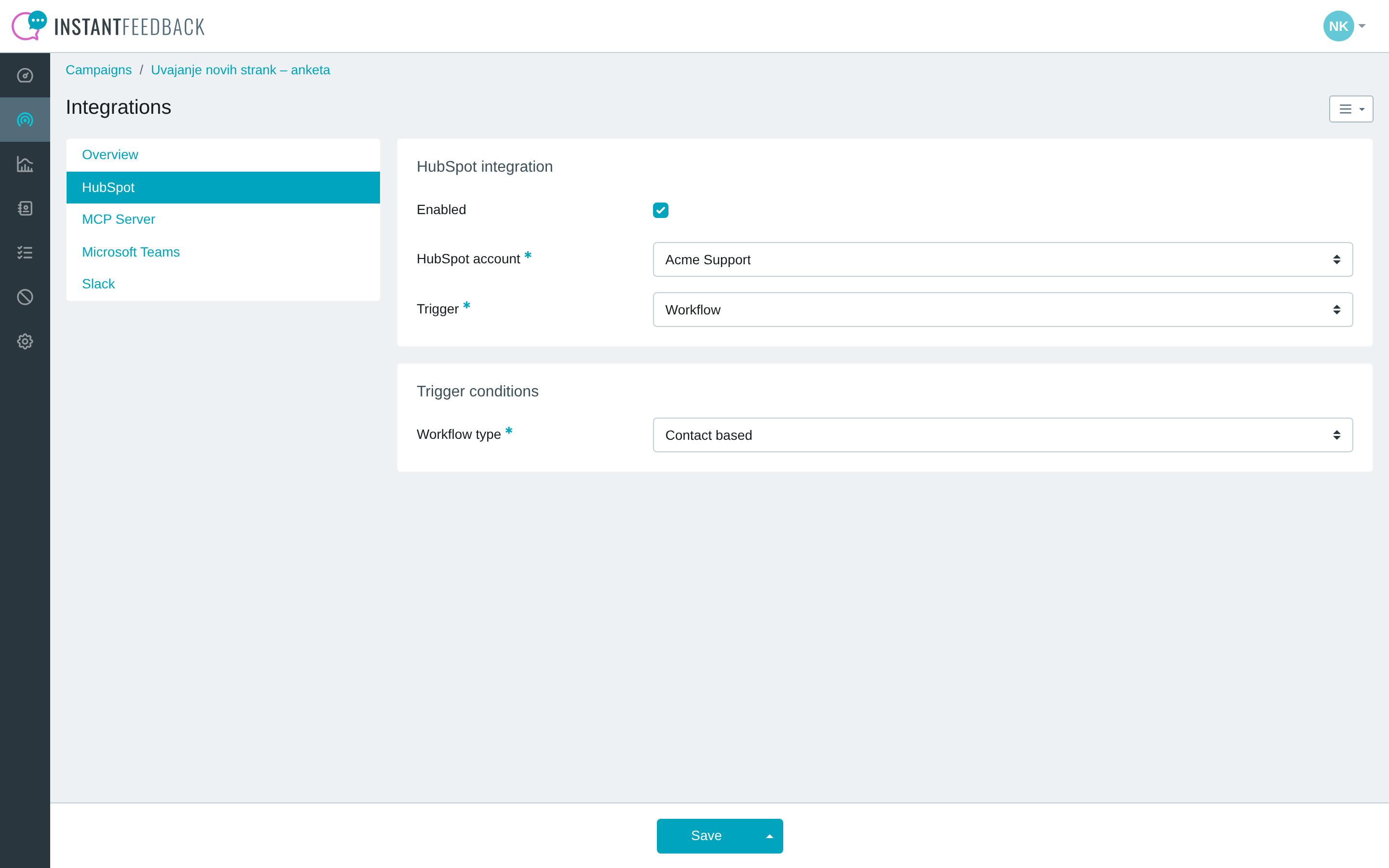
A campaign set up for contact-based HubSpot workflows.
- In HubSpot, open the workflow and add an action. Under the InstantFeedback app, choose Send email feedback request or Send SMS feedback request.
- Select the InstantFeedback Account and the InstantFeedback Campaign. The campaign list only offers active campaigns of the right channel whose HubSpot settings are enabled with the Workflow trigger and the matching Workflow type.
- Choose where the recipient's address comes from: Email source (Contact's email, Contact's work email) or Mobile number source (Contact's phone, Contact's mobile phone). Contact-based workflows also offer Other, which lets you pick any contact property under Custom email source or Custom number source.
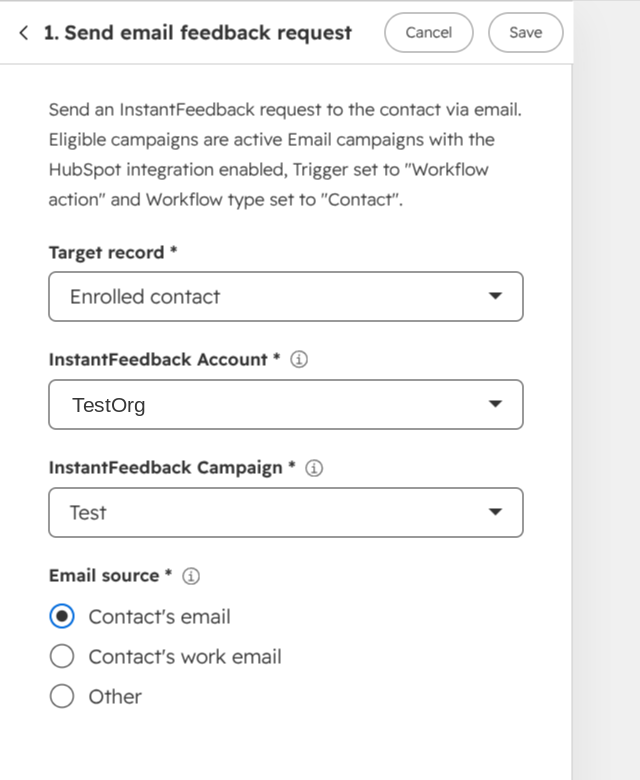
Configuring the Send email feedback request action in HubSpot.
For deal- and ticket-based workflows, a request is sent to every contact associated with the deal or ticket, and the campaign's Deal field mapping or Ticket field mapping fills the custom fields. If the action cannot be carried out, for example because the campaign was deactivated or its trigger changed, HubSpot shows the reason in the workflow's action logs.
Web campaigns
For Web campaigns the HubSpot tab has no trigger. Pick the HubSpot account and use Contact field mapping to copy HubSpot contact properties into the campaign's custom fields.
When a visitor leaves feedback through the widget on a page that runs the HubSpot tracking code, InstantFeedback records the feedback on the visitor's HubSpot timeline. If HubSpot knows the visitor as a contact, InstantFeedback then fills HubSpot contact ID and the mapped custom fields on the feedback entry, so anonymous web feedback becomes attributable to a contact.
What is synced back to HubSpot
Every step of a feedback request is recorded in HubSpot as a timeline event on the contact, and, for ticket- and deal-based requests, on the ticket or deal as well. The events appear on the record's activity timeline and can be used in HubSpot lists and reports.
| Moment | Timeline events |
|---|---|
| Request sent | Feedback request sent to contact, Feedback request sent for ticket, Feedback request sent for deal, List feedback request sent to contact |
| Reminder sent | Feedback reminder sent to contact, and the ticket, deal, and list variants |
| Grade received | Contact rated, Ticket rated and Contact rated ticket, Deal rated and Contact rated deal, List contact rated, Contact rated content |
| Comment received | Contact commented, Ticket commented and Contact commented ticket, Deal commented and Contact commented deal, List contact commented, Contact commented content |
| Survey started or completed | Contact started survey, Contact completed survey, and the ticket, deal, list, and content variants. Completed surveys include the answers in the event details. |
Grades and comments also update the properties in the InstantFeedback property group on the contact and on the ticket or deal:
| Property | Content |
|---|---|
| Last rating, Last rating metric, Last rating date, Last rating campaign | The most recent grade, the campaign's metric (NPS, CSAT, or average grade), when it was given, and the campaign. |
| Average rating, Average CSAT rating, Average NPS rating | Running averages of the grades the contact gave to contact- and segment-based requests, one per metric. Separate Average ticket…, Average deal…, and Average content… properties hold the averages for ticket, deal, and web feedback. CSAT and average-grade values are normalised to a 1–5 scale; NPS keeps its 0–10 scale. |
| Last received comment, Last comment date, Last comment campaign | The most recent comment, when it was given, and the campaign. |
Do not delete the InstantFeedback properties in HubSpot
Deleting a property in the InstantFeedback group breaks the sync and puts the account into Repair required. InstantFeedback recreates missing properties during repair, but values that were stored in a deleted property are lost.
Pause, reset, or remove
The Advanced tab shows how many campaigns have a HubSpot configuration and offers two account-wide actions. Click View configured campaigns to see which campaigns use which HubSpot account.
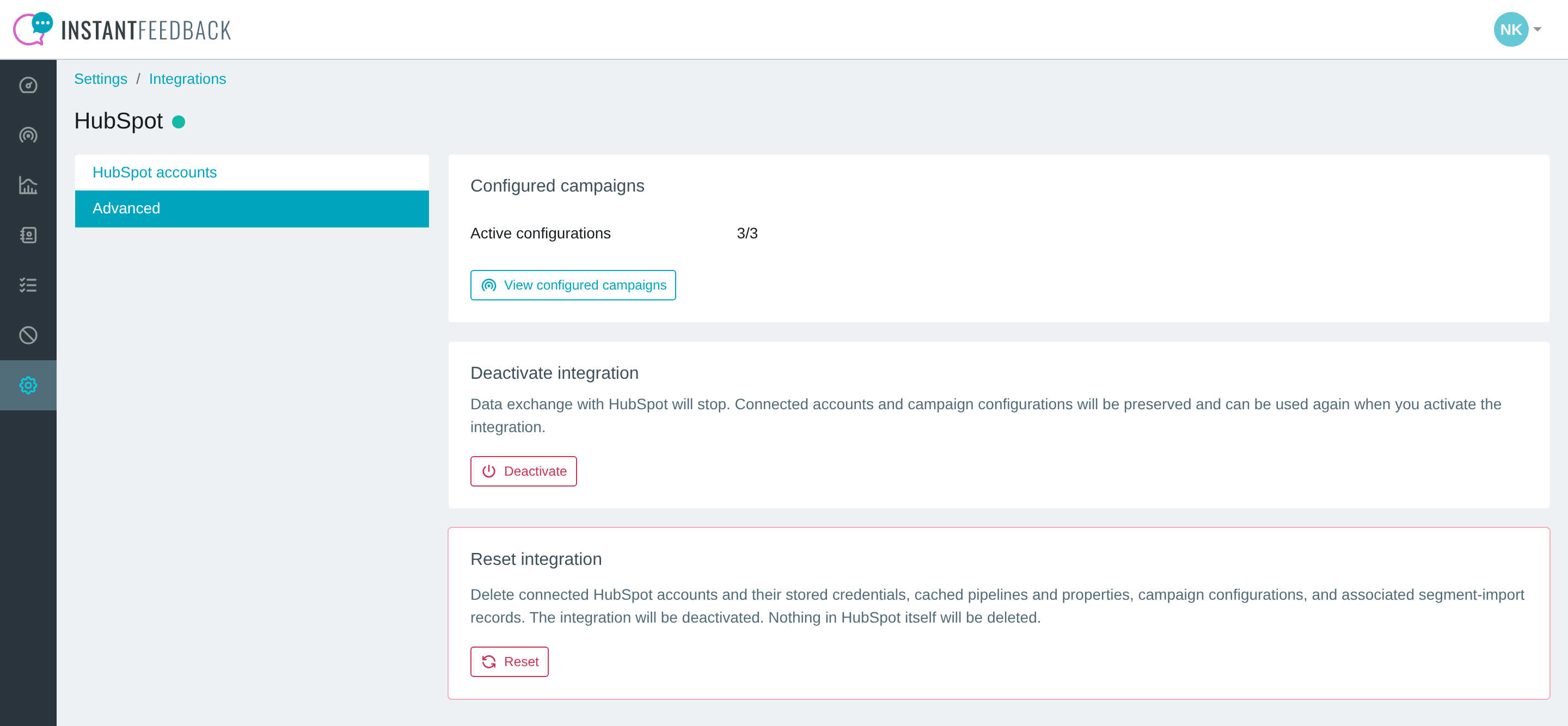
The Advanced tab.
- Deactivate stops all data exchange with HubSpot. Connected accounts and campaign configurations are kept, and everything resumes when you activate the integration again.
- Reset permanently deletes the connected HubSpot accounts with their stored credentials, the cached pipelines and properties, all campaign configurations, and the segment import history, and deactivates the integration. You have to type RESET to confirm. This cannot be undone.
To stop a single HubSpot account instead, use Disable or Delete in its account menu.
Access stays granted in HubSpot
Resetting the integration or deleting an account removes the credentials from InstantFeedback but does not uninstall the InstantFeedback app from HubSpot, and it does not remove the InstantFeedback property groups or the data stored in them. To revoke access, uninstall the app under Settings → Integrations → Connected apps in HubSpot.
Troubleshooting
| Message or symptom | What to do |
|---|---|
| Error connecting HubSpot account. | HubSpot did not complete the authorisation, for example because you cancelled. Click Connect account and try again. |
| Invalid or expired HubSpot authorization request. | The connection took too long or was started in another browser session. Start again from the HubSpot accounts tab in the same browser. |
| The authorized HubSpot account does not match the account being reconnected. | You chose a different HubSpot account during Reconnect. Reconnect again and pick the account with the portal ID shown in the table. To add another account, use Connect account instead. |
| InstantFeedback could not complete the HubSpot setup. Please try again. | Setup was interrupted. Run Health check from the account menu, then Repair now or Reconnect now as suggested. |
| Health shows Reconnect required, or you received URGENT | Reconnect your HubSpot account. | The authorisation was revoked, expired, or lost permissions. Open the account menu and click Reconnect with a HubSpot user who can grant all requested permissions. |
| Health shows Repair required. | Something is missing in HubSpot or in InstantFeedback. Run Health check to see what, then Repair now. InstantFeedback also repairs automatically twice a day. |
| The health check lists HubSpot authorization is missing required permissions. | The app was connected with fewer permissions than it needs. Reconnect and accept all requested permissions. |
| The health check lists Required custom field is not assigned to the campaign: … | Open the campaign's HubSpot tab and click Save, or run Repair. |
| Unassign this HubSpot account from campaign settings before deleting it. | Campaigns still use the account. Open Advanced → View configured campaigns, change or disable HubSpot on those campaigns, then delete the account. |
| Tickets are closed or deals are won, but no feedback requests are created. | Check that the integration is active, the account is Enabled and Healthy, the campaign is active with HubSpot Enabled and the right Trigger, the pipeline is ticked under Pipeline matches, the contact has a value in the mapped Mobile number or Email property, and the Preferred language setting does not exclude the contact. |
| Feedback requests disappear before they are sent. | The ticket was reopened or the deal changed stage before the send delay passed. Pending requests for that record are cancelled on purpose. |
| The HubSpot workflow action offers no campaign under InstantFeedback Campaign. | The campaign must be active, match the action's channel (email or SMS), have HubSpot Enabled with the Workflow trigger, and a Workflow type that matches the workflow's object. The account must also be active and not Reconnect required. |
| HubSpot segments are unavailable until the integration is reconnected. | The account needs to be reconnected. Do that first, then open the segment picker again. |
| No HubSpot contact segments were found. | The HubSpot account has no contact segments, or the connected user cannot see them. Create the segment in HubSpot, or type its ID directly. |
| You have reached the maximum number of segment imports for this calendar year. | Your plan's yearly limit for this campaign is used up. Use another campaign or wait for the next calendar year. |
| A segment import ends with status Error. | Open the import and click the errors link. Error fetching contacts from HubSpot. means HubSpot did not respond; try again. The HubSpot integration must be reconnected before this list can be imported. means the account needs reconnecting. HubSpot list with listId … does not exist. means the ID is wrong. |
| An import completes, but fewer requests were created than the segment has contacts. | Contacts without a value in the mapped phone or email property are skipped. The import log lists each one as Contact … was skipped because no email address or phone number was available from the configured mappings. |
| Web feedback shows no HubSpot contact ID. | The page must run the HubSpot tracking code, and HubSpot must already know the visitor as a contact. Anonymous visitors cannot be matched. |